
HubSpot Name Cleaner: Automatically Capitalize and Clean Contact Names
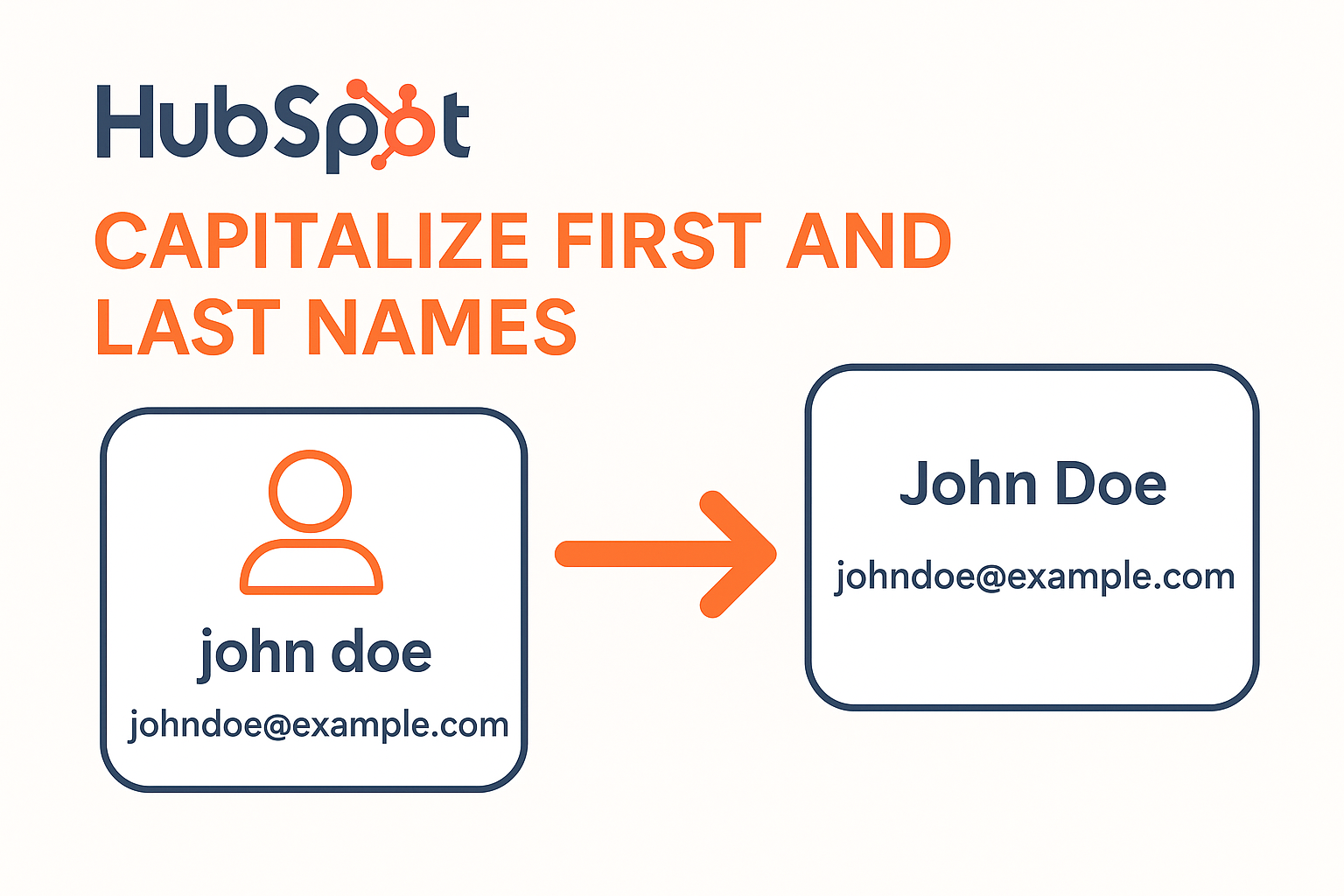
Introduction: The Problem with Messy Data
HubSpot data can get messy — especially when contacts submit forms with lowercase names, emojis, or even email addresses in name fields. Poor data hygiene doesn’t just look unprofessional, it also disrupts personalization tokens in emails (“hi john” instead of “Hi John”), affects reporting consistency, and slows down your team’s work.
While HubSpot offers tools like Workflows, it lacks a native feature to clean and properly capitalize first and last names. Manual cleanup is tedious and prone to errors. Third-party tools exist but often come with extra costs or require Ops Hub.
That’s why I built this free Google Apps Script — a simple but powerful "vibe code" that automatically:
-
Cleans messy names.
-
Removes emojis and special characters.
-
Detects invalid entries (like email addresses in name fields).
-
Properly capitalizes first and last names.
-
Guesses names from email addresses when possible.
-
Updates records in HubSpot automatically.
The best part? It works for Starter, Pro, and Enterprise HubSpot users — without requiring extra paid tools.
Why This Script is Different
Unlike simple data formatting workflows, this script goes beyond capitalization. It intelligently checks, cleans, and logs every update. Whether you’re on HubSpot Starter (with API pull) or Pro/Enterprise (using workflows), this solution adapts to your setup.
Key Benefits
-
Starter Users: Pull contacts directly via the HubSpot API.
-
Pro/Enterprise Users: Use HubSpot Workflows to feed contacts into Google Sheets for automated cleanup.
-
No Third-Party Costs: Fully free and built with Google Apps Script.
-
Real-Time Logs: Track every change in the Name Fix Log and Review Needed sheets.
-
Admin Alerts: Get email notifications for guesswork or fallback actions.
Quick Setup Checklist
Before diving into the details, here’s a quick overview of what you’ll do:
-
Create a HubSpot Private App with
crm.objects.contacts.readandcrm.objects.contacts.writescopes. -
Copy the Private App Token.
-
Prepare a Google Sheet with columns:
Record ID, First Name, Last Name, Email. -
Decide your setup:
-
Set
USE_WORKFLOW = trueif using HubSpot Workflows. -
Set
USE_WORKFLOW = falseif pulling contacts via API.
-
-
Add the script (provided below) into Google Apps Script.
-
Run the script to clean names and push updates to HubSpot.
-
Check the logs in
Name Fix LogandReview Neededsheets.
Step-by-Step Setup Guide
Step 1: Create a HubSpot Private App
-
Go to HubSpot Settings → Integrations → Private Apps.
-
Click Create Private App.
-
Name it something like Name Cleaner App.
-
Under Scopes, enable:
-
crm.objects.contacts.read -
crm.objects.contacts.write
-
-
Save the app and copy the Access Token — you’ll use this in the script.
Step 2: Prepare Your Google Sheet
-
Create a new Google Sheet and name it HubSpot Name Fixer.
-
Add these columns in Row 1:
-
Record ID -
First Name -
Last Name -
Email -
-
-
Step 3: Decide Your Setup
-
For HubSpot Starter:
SetUSE_WORKFLOW = false— the script will pull contacts directly from HubSpot via API. -
For HubSpot Pro/Enterprise:
SetUSE_WORKFLOW = true— HubSpot Workflows will populate the sheet.
Step 4: Add the Script
-
Open your Google Sheet.
-
Navigate to Extensions → Apps Script.
-
Paste the script below.
-
Replace
-
Replace
admin@example.comwith your email address. -
Save the script.
The Script
Step 5: Run the Script
-
Open your Google Sheet.
-
From the HubSpot Sync menu, click Run Cleanup & Push Updates.
-
If
USE_WORKFLOW = false, run Pull Contacts from HubSpot first. -
Once complete, check the
Name Fix LogandReview Neededsheets.
How the Script Works (Step-by-Step)
-
Reads your HubSpot data.
-
Pulls data directly via API (Starter) or reads workflow-fed rows (Pro/Enterprise).
-
-
Cleans names.
-
Removes unwanted characters (emojis, special symbols, extra spaces).
-
-
Capitalizes names properly.
-
john doe → John Doe.
-
-
Checks for invalid names.
-
Detects if a name is actually an email address.
-
-
Guesses missing names.
-
Extracts probable names from email addresses.
-
-
Handles unfixable names.
-
Replaces first names with “there” when guessing fails.
-
-
Pushes updates back to HubSpot.
-
Real-time updates using the HubSpot API.
-
-
Creates logs.
-
Name Fix Logshows every before-and-after update. -
Review Neededlists unresolved or questionable entries.
-
-
Sends admin notifications.
-
Alerts you via email when guesswork or fallback actions occur.
-
Step 6: Logs and Monitoring
-
Name Fix Log:
Tracks every updated contact, including original vs. cleaned names. -
Review Needed:
Flags contacts that require manual review or could not be automatically fixed.