
A HubSpot administrator installs and authorizes WoodsPortal, then a tenant administrator completes the guided setup at https://app.woodsportal.com.
Install and connect HubSpot
- Start from the WoodsPortal HubSpot Marketplace installation flow.
- Sign in with the HubSpot account that should be connected.
- Review the requested scopes.
- Authorize the app using a HubSpot administrator with the required installation access.
- Continue to https://app.woodsportal.com.
- Confirm that the correct HubSpot account is connected.
Complete onboarding
- Enter First name and Last name, then select Continue.
- Choose whether to install and connect a hub or join an existing setup when that path is available.
- Create or select the customer portal.
- Complete the applicable setup questions.
- Continue until the wizard reports Ready.
- Open the portal administration area and configure objects, users, permissions, views, and presentation.
Behavior and troubleshooting
- The onboarding wizard is resumable. Reloading during setup should return an incomplete administrator to the active step.
- Basic hubs can skip the question-and-answer path.
- If authorization fails, verify the HubSpot user’s installation permissions and the selected hub.
- If a background installation step remains pending, review its job and notification before restarting.
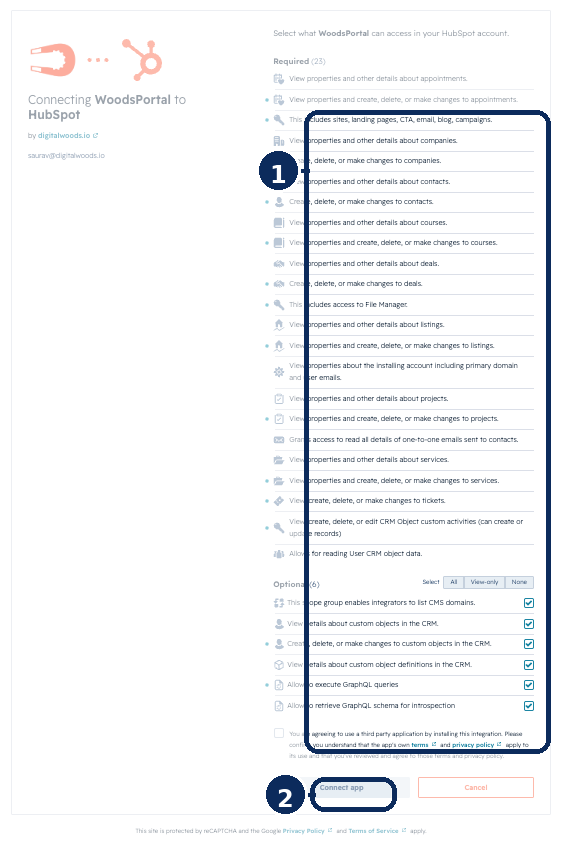
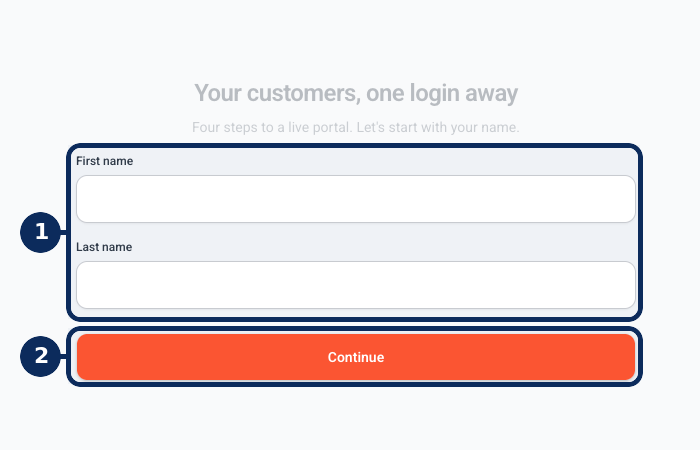
Figure: Review required and optional HubSpot scopes, connect the app, and begin onboarding with first and last name. Screens for the remaining onboarding steps and the Ready state are still needed.