
Overview
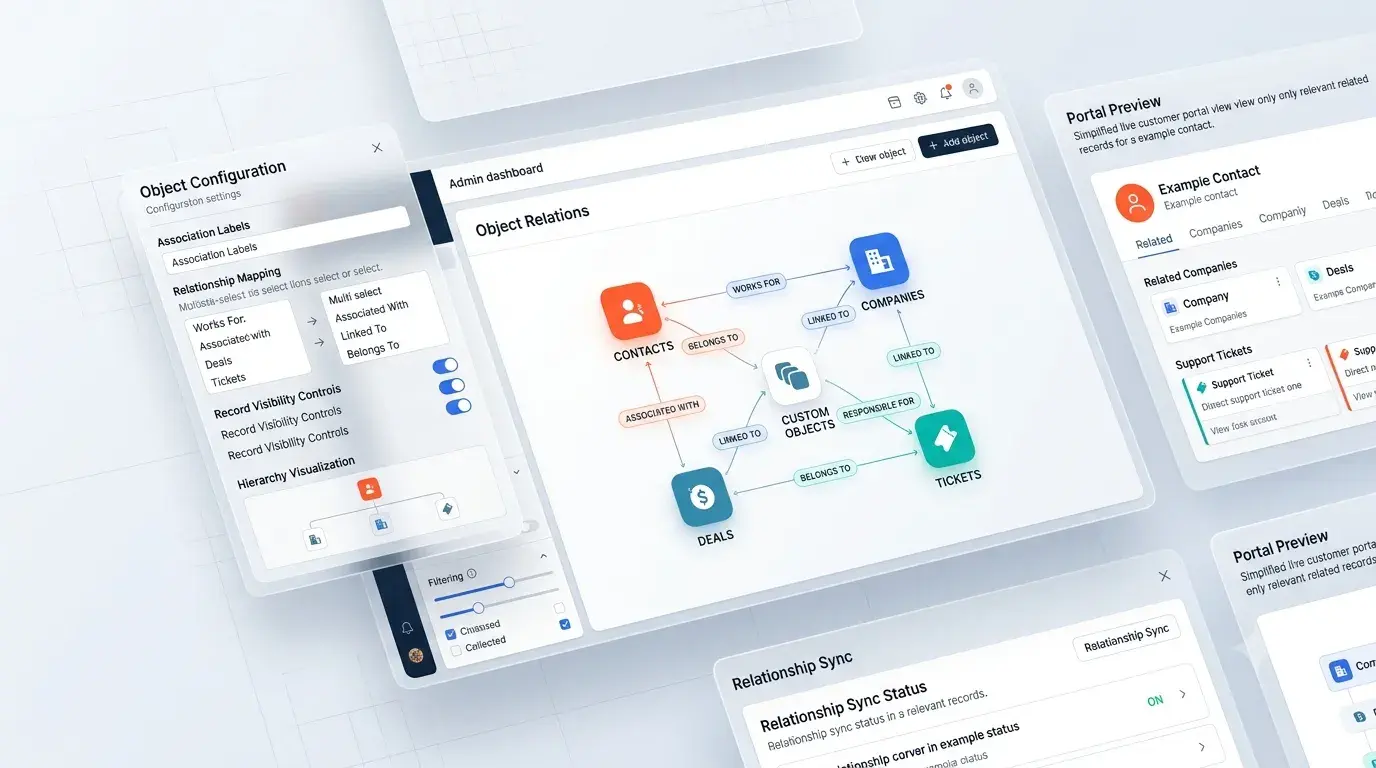
WoodsPortal surfaces HubSpot CRM records in your customer portal by using association labels. You can choose which standard (Contacts, Companies, Deals, Tickets) and custom objects customers see by activating them in the WoodsPortal Admin → HubSpot Objects settings.
Before you begin
-
WoodsPortal must be installed and your client portal created.
-
You need Portal Admin or Super Admin permissions in WoodsPortal.
Step-by-Step Instructions
-
Open HubSpot Objects Settings
-
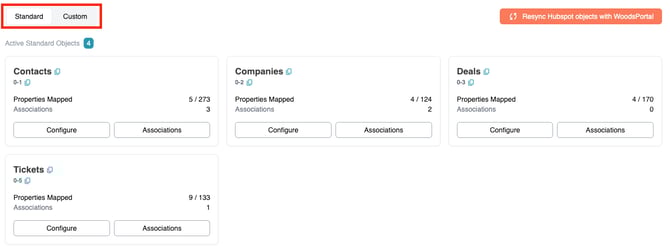
In WoodsPortal Admin, navigate to HubSpot Objects.
-
You’ll see two tabs: Standard Objects and Custom Objects.
-
-
Activate Custom Objects (if needed)
-
Switch to the Custom Objects tab.
-
Find any custom object you want to expose and activate it for association.
-
-
Configure Standard Object Associations
-
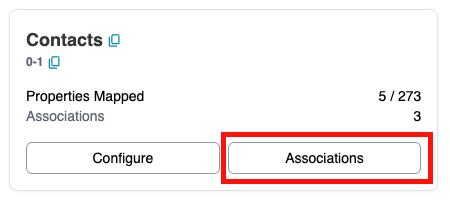
On the Standard Objects tab, click Contacts ▶ Associations.
-
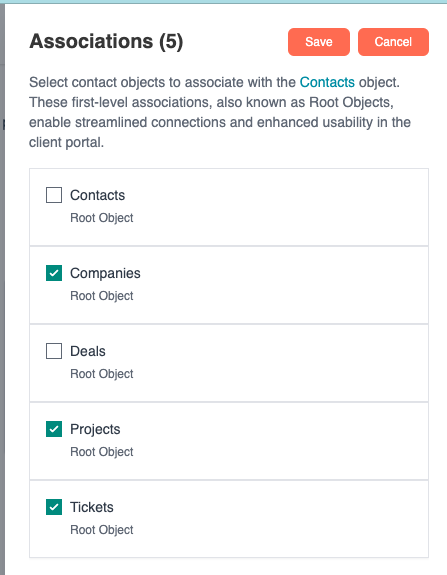
A sidebar opens listing all active objects.
-
Check the boxes next to each object you want customers to see (e.g., Deals, Tickets).
-
Click Save.
-
-
Configure Company-Level Associations
-
Still on the Standard Objects tab, select Companies ▶ Associations.
-
In the sidebar, check the boxes for each object customers should see within a company context (e.g., Contacts, Deals).
-
Click Save.
-
Saving these selections creates the necessary association labels in HubSpot CRM, connecting your portal users to the chosen records.
Troubleshooting
| Issue | Resolution |
|---|---|
| No objects listed under Associations | Ensure you activated any custom objects on the Custom Objects tab before configuring. |
| Changes not reflecting in customer portal | Wait 1–2 minutes for label sync, then refresh your portal page or clear browser cache. |
| Missing “Associations” option for an object type | Confirm your user role includes Portal Admin privileges in WoodsPortal Admin settings. |