
Overview
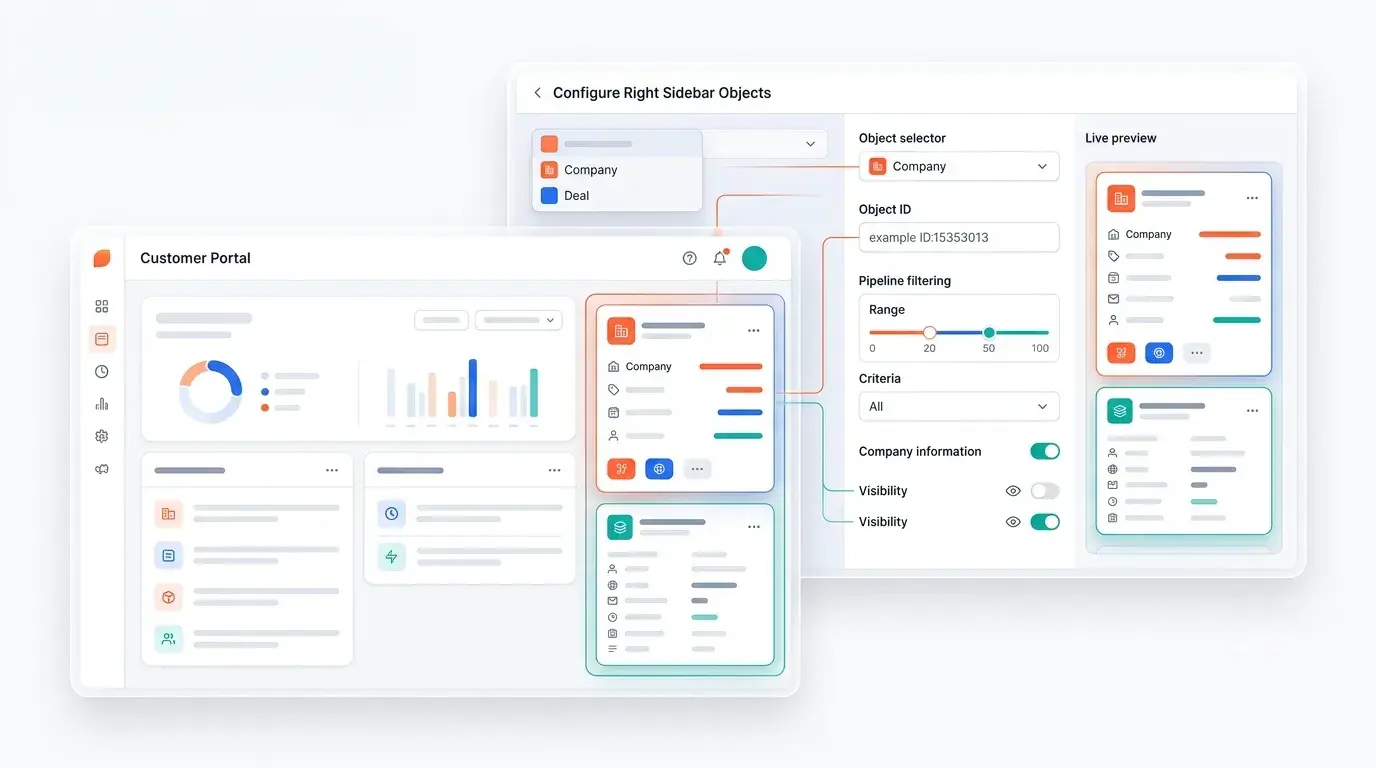
The Right Sidebar lets you surface one or two HubSpot object record lists alongside your dashboard. You can include any standard or custom object, assign a friendly name, and apply filters for company association or specific pipelines. You can also render URL properties in an iframe pop-up.
Before you begin
-
WoodsPortal Admin tasks (e.g. object associations, pipeline setup, portal configuration): HubSpot Super Admin or Partner Admin role is required.
-
CMS page tasks (creating pages, applying themes/templates, editing modules): access to Website Pages and Design Manager in HubSpot is sufficient.
Step-by-Step Instructions
-
Enable the Right Sidebar
-
In the HubSpot page editor, open the Contents panel and click Right Sidebar.
-
Toggle Enable Sidebar Objects on.
-
-
Add Object Cards
-
Under Object 1 (and Object 2, if needed), click Select object.
-
-
Set a Display Name
-
Enter a custom Name for the object card (this label appears in the UI and can differ from your HubSpot object name).
-
-
Specify the Object Type ID
-
For standard objects, enter the fixed IDs:
-
Contact:
0-1 -
Company:
0-2 -
Deal:
0-3 -
Ticket:
0-5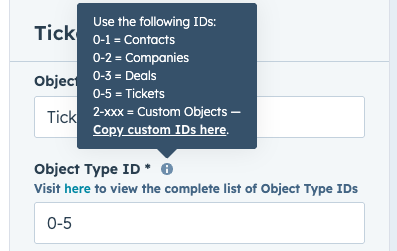
-
-
For custom objects, find the ID in WoodsPortal Admin > HubSpot Objects > Custom Objects.
-
Copy the ID displayed under the custom object’s name and paste it here.
-
-
-
Show Primary Company Data (Optional)
-
Toggle Primary Company Data on to display records linked to the portal user’s primary company instead of directly to the contact.
-
-
Filter by Pipeline (Optional)
-
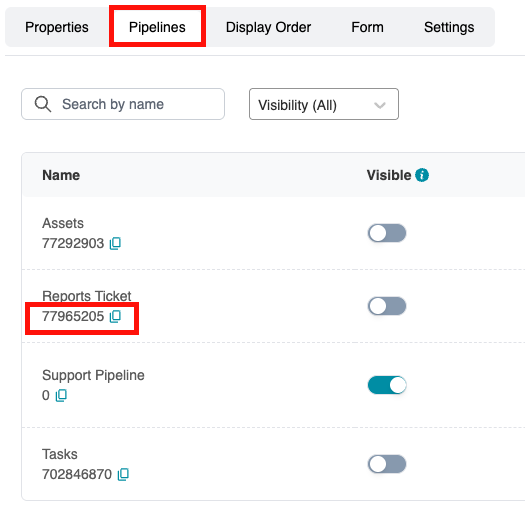
Toggle Filter by Pipeline on to restrict records to a specific pipeline.
-
In WoodsPortal Admin > HubSpot Objects, select the object and open Configure → Pipelines to copy the pipeline ID.
-
Paste the pipeline ID into the filter field.
-
-
Enable Iframe for URL Properties (Optional)
-
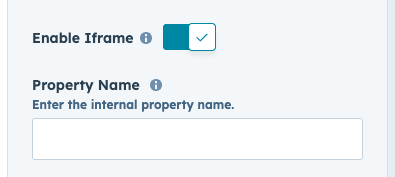
Toggle Enable Iframe on to render clickable URL properties as iframe pop-ups.
-
Enter one or more property internal names (comma-separated) whose values should open in an iframe.
-
Troubleshooting
| Issue | Resolution |
|---|---|
| Custom object not appearing in dropdown | Activate it under WoodsPortal Admin > HubSpot Objects > Custom Objects and refresh the page editor. |
| Invalid object or pipeline ID | Verify the ID in WoodsPortal Admin and ensure no extra spaces when pasting. |
| Iframe pop-up not working | Confirm the property contains a valid URL and you’ve entered the correct internal name; test in a new page. |