
Overview
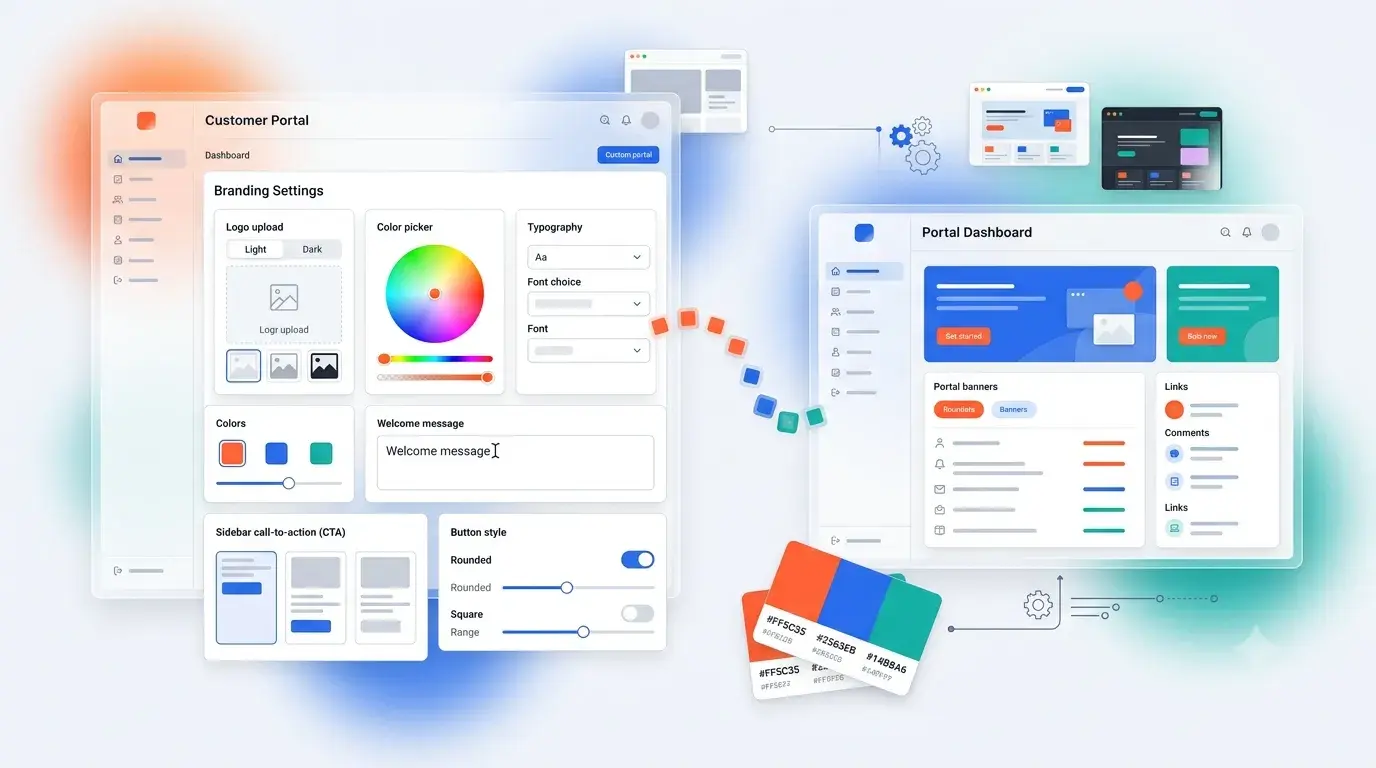
The Branding section lets you tailor the look and feel of your WoodsPortal login and sidebar. You can upload light/dark logos, set alt text and sizing, craft a welcome message, and add a custom sidebar CTA with text and URL.
Before you begin
-
CMS permissions: Access to Website Pages and Design Manager in HubSpot.
-
Assets: Prepare logo files (light and dark versions) and any URLs for CTAs.
Step-by-Step Instructions
-
Open the Branding Module
-
In the HubSpot page editor’s Contents panel, click Branding.
-
-
Configure Company Logos
-
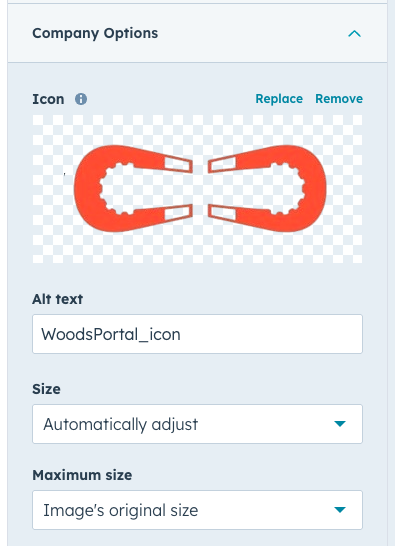
Logo Icon: Upload your portal icon, set Alt text, and choose Size:
-
Auto: Adjusts to original dimensions.
-
Custom: Enter Width and Height in pixels.
-
-
Light Logo (for dark backgrounds):
-
Upload the image, set Alt text, choose Size or Max size limits.
-
-
Dark Logo (for light backgrounds):
-
Upload the image, set Alt text, choose Size or Max size limits.
-
-
-
Set a Welcome Message
-
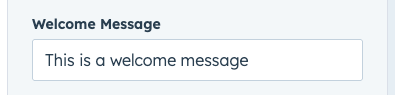
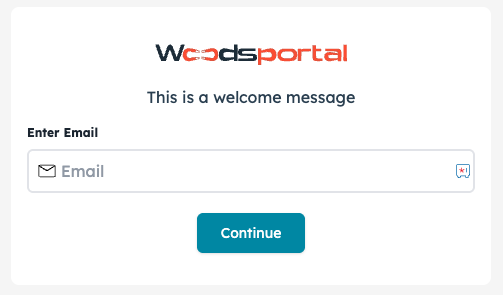
In Welcome Message, enter the text shown on the portal’s login screen (supports rich text formatting).
-
-
Add a Sidebar CTA
-
Toggle on Show Sidebar CTA to reveal the CTA section.
-
CTA Title: Enter a heading above the button.
-
Button Text: Enter the call-to-action label (e.g., “Contact Support”).
-
Button URL: Paste any valid URL (external site, HubSpot page, file, blog, or payment link).
-
-
Save & Publish
-
Click Save in the module.
-
Publish or update your page to apply the new branding.
-
Troubleshooting
| Issue | Resolution |
|---|---|
| Logos appear distorted | Verify you set correct custom Width/Height, or switch to Auto sizing. |
| CTA button not visible | Ensure Show Sidebar CTA is toggled on and you’ve entered both Button Text and URL. |
| Welcome message not updating | Confirm you’re editing the correct page in HubSpot CMS (not a draft of another template), then republish the page. |