
Implementation partners can deliver the authenticated WoodsPortal client experience through a HubSpot CMS module that uses current WoodsPortal assets and services.
Add and configure the module
- Open the intended HubSpot CMS page or template.
- Add the current WoodsPortal client module.
- Complete the configuration fields required by the installed module.
- Confirm the connected WoodsPortal environment and portal context.
- Use the editor preview to check the layout.
- Publish through the normal HubSpot CMS process.
- Open the published customer portal and test sign-in, navigation, records, and permissions.
Safe editor preview
- The HubSpot page editor can render sample CRM content for layout review.
- Editor preview avoids live authentication calls and write actions.
- Write actions should show a read-only preview message instead of changing production data.
- A successful editor preview does not replace testing on the published page.
Requirements and troubleshooting
- The module and current WoodsPortal assets must be published and connected correctly.
- Customer behavior depends on authentication, portal configuration, object access, properties, associations, and permissions.
- If the editor shows sample data but the live page fails, check published configuration and connected WoodsPortal services.
- Use https://app.woodsportal.com for production administration.
Configure the page and publishing context
- Create or open the intended HubSpot CMS page and confirm its page title, domain, and URL slug.
- Select the current WoodsPortal-compatible theme and template used by the implementation.
- Add the current WoodsPortal client module and complete only the fields exposed by that installed version.
- Confirm that the selected domain is the intended customer-facing portal domain before publishing.
- Use the editor preview for layout checks, then test the published URL with representative portal roles.
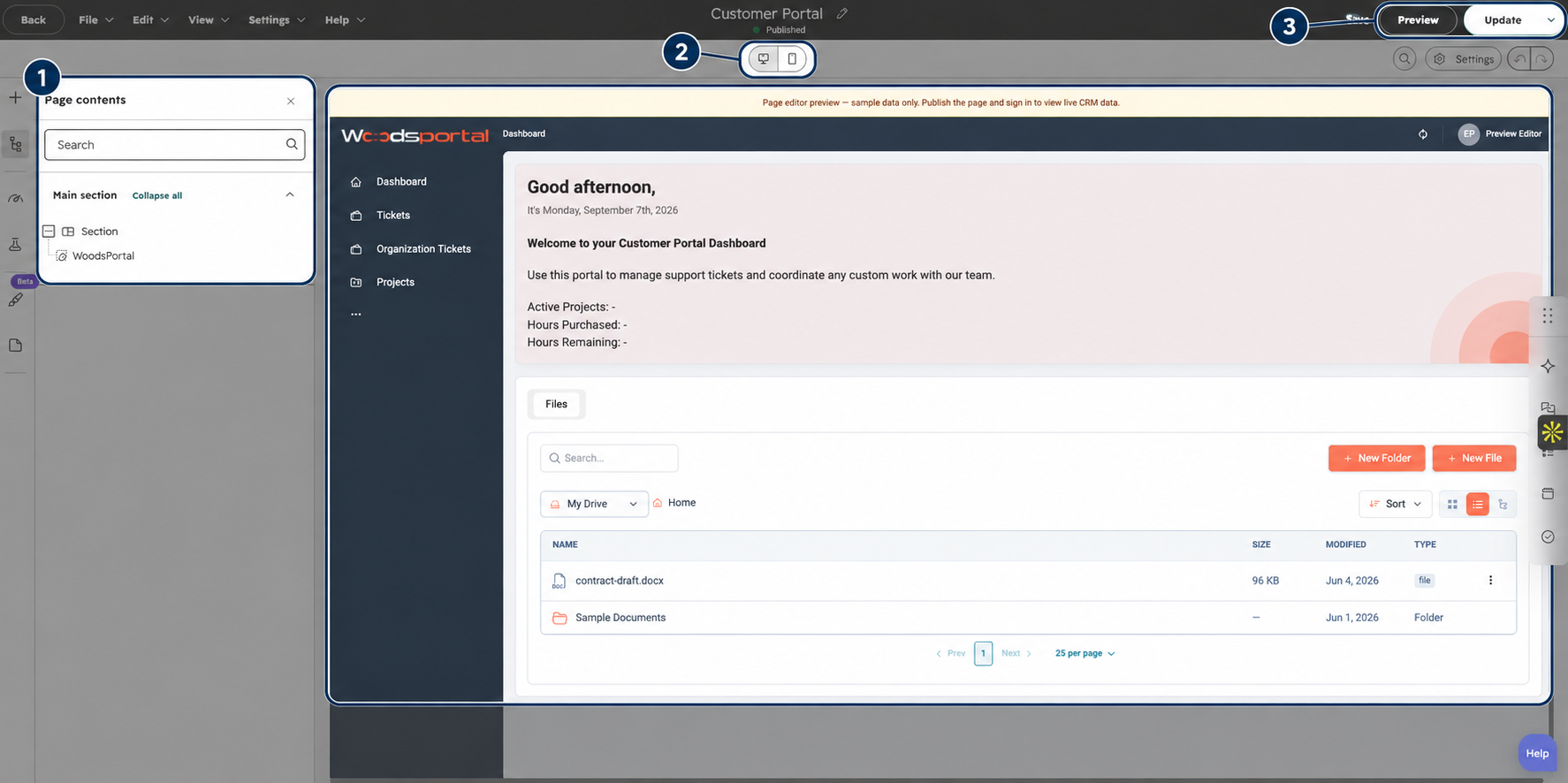
Figure: Place the WoodsPortal module on a HubSpot CMS page and preview the customer experience before publishing.