
Administrators can browse and install supported theme assets, while the current Integration Manager exposes integration routes whose production catalog remains to be verified.
Work with themes
- Sign in to https://app.woodsportal.com and select the correct portal.
- Open Themes.
- Browse the available theme assets.
- Open a theme to inspect the information shown by the current interface.
- Install the selected theme or upload supported templates when that action is available.
- Confirm the installed state and test the customer portal presentation.
Theme qualification
- Theme and presentation capabilities do not imply unrestricted white-label control over every interface element.
- The exact live customization controls and the boundary between self-service and implementation support remain backlogged.
- Document only the controls visible in the production account used for capture.
Use the Integration Manager cautiously
- Open the current Integration Manager in the administrator app.
- Review only the integrations shown for the selected account.
- Open an integration detail page to inspect its current configuration and status.
- Do not assume an integration is native, generally available, or self-service unless the current catalog and product owner confirm it.
Current qualification
- The complete production integration inventory remains backlogged.
- Exclude in-development portal settings and self-service billing pages from customer documentation until their release status changes.
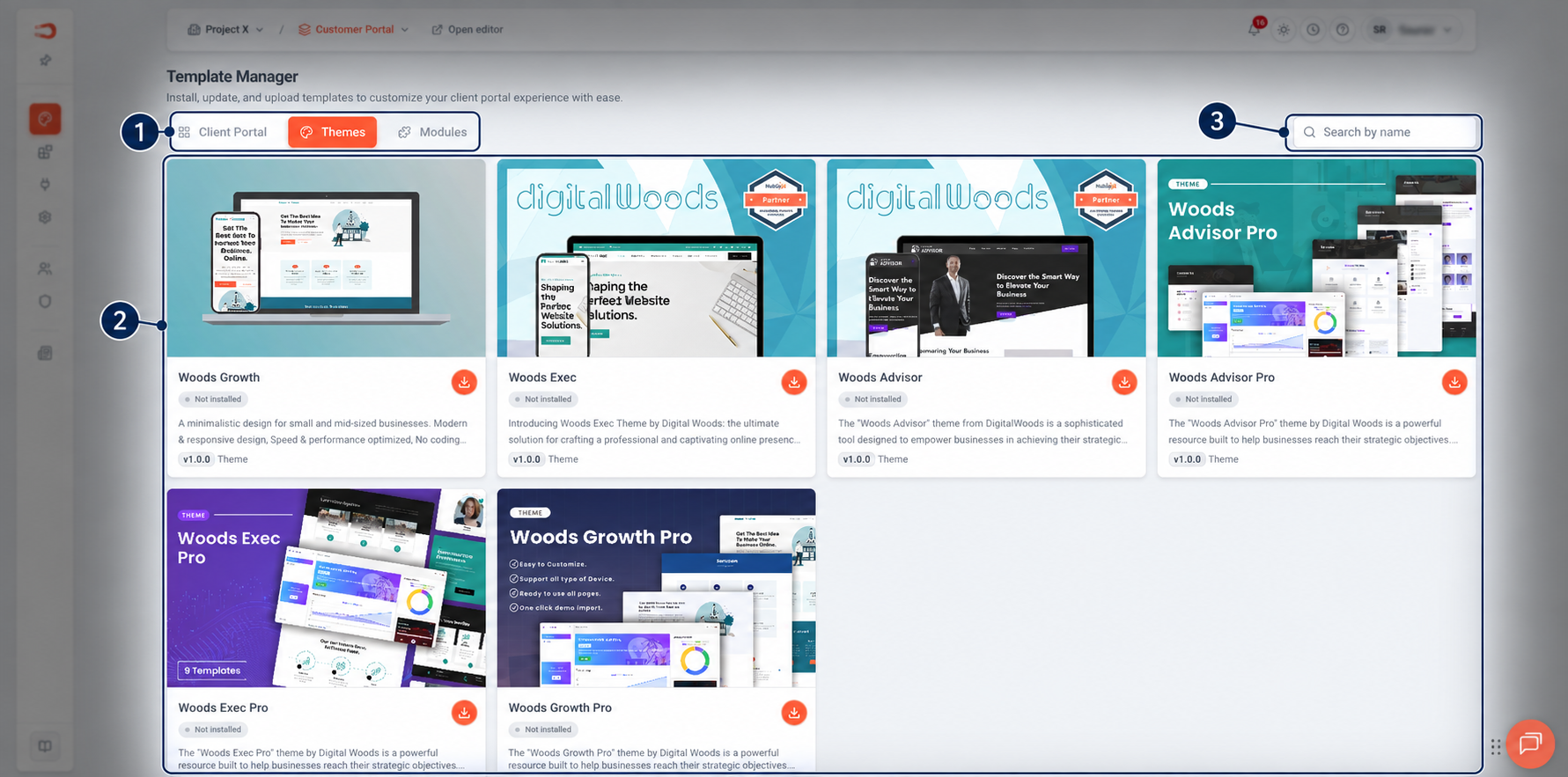
Figure: Browse and install available portal themes from the Template Manager.