
WoodsPortal gives administrators visibility into background operations, an in-product notification inbox, email preferences, and product announcements.
Track a background job
- Start a supported operation such as portal synchronization, object or property synchronization, product installation, or association setup.
- Open the jobs or notification surface.
- Filter the list by job type or status when needed.
- Open the relevant job and review its progress and result.
- For a failed job, use the displayed error or context to correct the issue before retrying.
Job statuses
- Pending
- Running
- Succeeded
- Failed
- Cancelled
Use notifications
- Open Notifications.
- Review unread and recent items.
- Open an item to view the related product or operational context.
- Mark or act on the notification through the available controls.
Configure preferences and review updates
- Open Account settings, then Notifications.
- Enable or disable the supported email categories, including failed-job alerts and product announcements.
- Save the preferences.
- Open What’s New to review formatted release and announcement content.
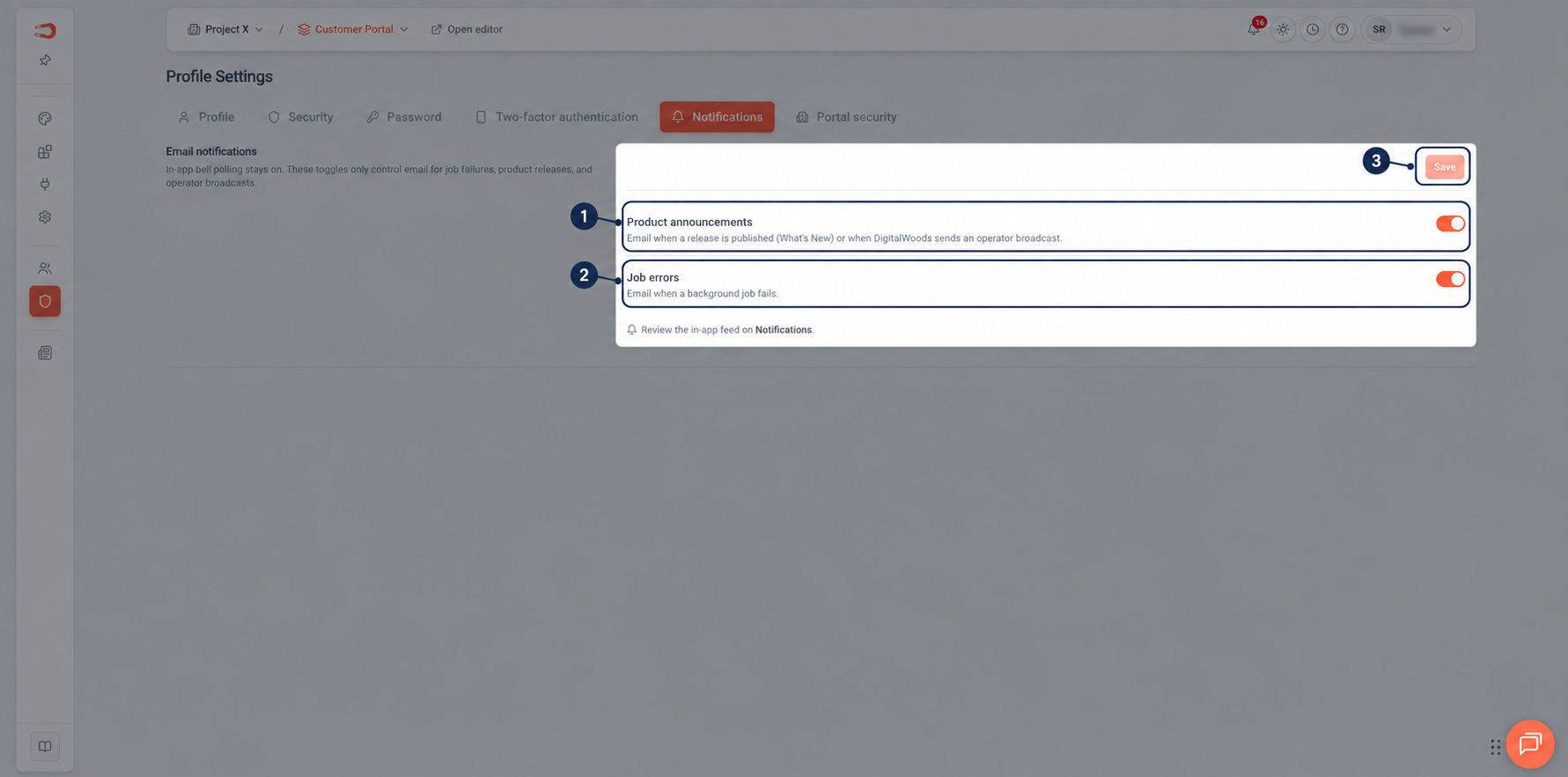
Figure: Administrator notification preferences for product announcements and job errors.