
Administrators decide which eligible HubSpot properties portal users can see and which visible properties they may edit.
Configure properties
- Open the correct object in https://app.woodsportal.com.
- Open Properties.
- Use the View control to show or hide eligible properties.
- For visible properties, enable Edit only where portal users should be allowed to change the value.
- Save the configuration and test it with a role that matches the intended portal user.
Use bulk actions
- Select property rows and apply the supported bulk visibility or editability action.
- For Contacts, use the common-profile-fields preset when it matches the intended profile experience.
- Large changes are processed in batches. The current backend accepts up to 100 property updates per request.
Rules and limits
- The primary display property remains visible.
- HubSpot read-only or calculated fields cannot be made editable.
- A visible property is not automatically editable.
- Effective access still depends on the user’s object and resource permissions.
Troubleshooting
- If a property is missing, run object and schema resynchronization.
- If Edit cannot be enabled, confirm that HubSpot treats the field as writable.
- If a saved property is absent in the portal, check the active portal, view builder, and role permissions.
Use customer-facing property labels
- Use clear display labels where the property or view builder supports a customer-facing label.
- Keep the HubSpot property itself unchanged when only the portal label needs to change.
- Check labels in every view where the property appears because table, board, detail, preview, and form contexts can be configured independently.
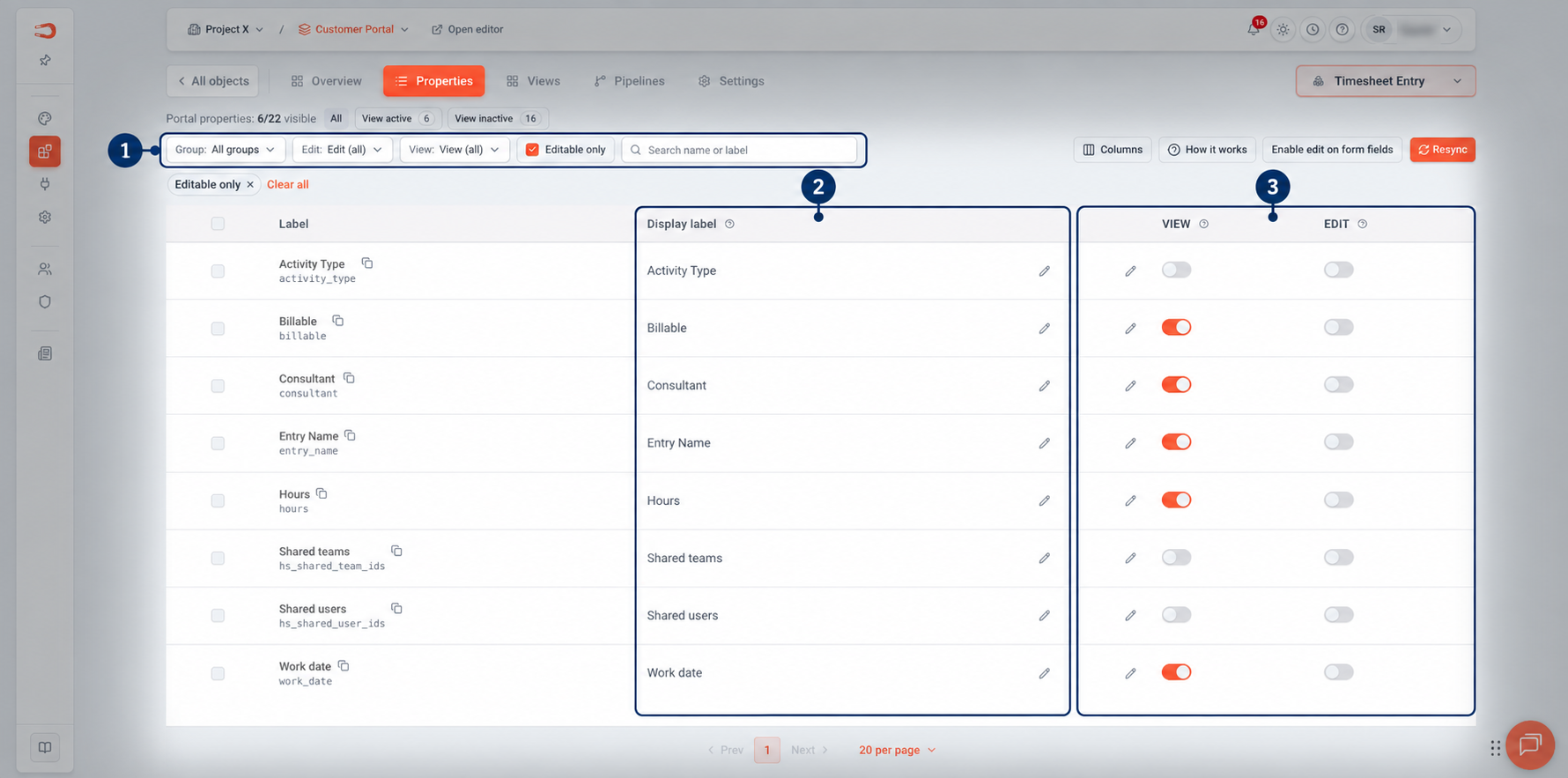
Figure: Object property controls for customer visibility and edit access.