
WoodsPortal administrators can sign in through HubSpot SSO or through the supported email-based methods available on the administrator login page.
Before you begin
- Open https://app.woodsportal.com.
- Use a HubSpot account that is authorized for the connected portal, or use the administrator email credentials supplied for your account.
- If your organization has restricted HubSpot app authorization, ask an authorized HubSpot administrator to complete the connection.
Sign in with HubSpot SSO
- Open https://app.woodsportal.com.
- Select Continue with HubSpot.
- Sign in to HubSpot if prompted and approve the requested access when you are authorized to do so.
- After authorization, return to WoodsPortal and confirm that the correct hub and portal context are available.
Sign in with email and password
- Choose the email and password option on the administrator login page.
- Enter your administrator email address and password.
- Choose the remember-session option only on a trusted device, if it is offered.
- Select Sign in.
Use an email one-time code
- Choose the email one-time-code option when it is available for your account.
- Request the code and open the newest message sent to your administrator email address.
- Enter the code in WoodsPortal.
- If the code expires, use the resend control and enter the newest code.
Troubleshooting
- If the expected sign-in method is missing, return to the first login step and confirm that you are using the correct administrator email address.
- If HubSpot authorization is denied, confirm that the HubSpot user has permission to install or authorize the WoodsPortal app.
- If you cannot complete email sign-in, use the password reset flow or contact your WoodsPortal administrator.
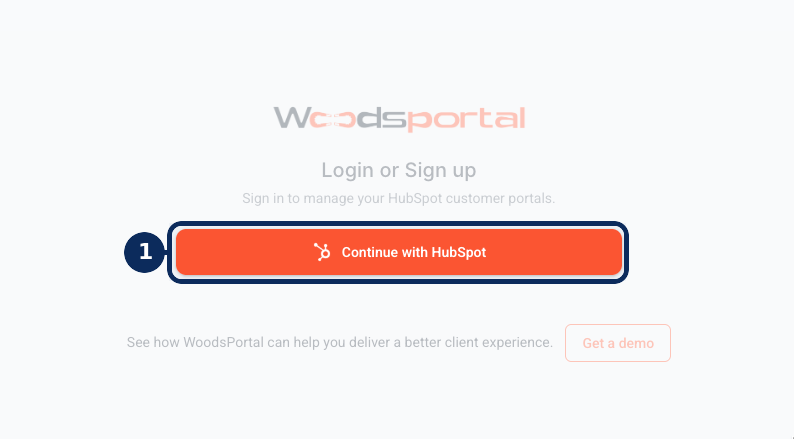
Figure: Start administrator sign-in with HubSpot. Email/password and one-time-code screens are still needed.