
Separate WoodsPortal builders control the fields and order used in table, board, record-detail, preview, and association-card contexts.
Configure the layouts
- Open the correct object in https://app.woodsportal.com.
- Open Views and choose the table, board, detail, or association-card builder.
- Add eligible properties to the selected layout.
- Arrange the properties in the order portal users should see them.
- Save each layout independently.
- Open the customer portal and test the object in table, board, and record-detail contexts.
Portal behavior
- Table views show configured columns and retain column context when no records match.
- Board views organize pipeline-backed records by stage.
- Record details can include permitted properties, associations, notes, email activity, and files.
- A user can open a side-panel preview from a table row or board card and close it with the close control or Escape.
- The preview requires the object’s detail experience to be enabled.
- User-specific grid and interface preferences are remembered for the signed-in user and portal.
Limits
- An association card supports up to eight configured properties.
- Each view is configured independently, so adding a property to one view does not add it everywhere.
- Only authorized records and properties appear.
Configure record-detail tabs and order
- Choose the tabs that portal users should see on the record detail page.
- Use customer-facing tab labels for overview, files, notes, tickets, and related-record areas where label editing is available.
- Arrange tabs and detail sections in the order that supports the customer's workflow.
- Hide irrelevant ticket or related-record areas, or rename them when the underlying feature is still required.
Configure object capabilities
- Enable record creation or updating only when portal users should perform those actions.
- Enable file-manager, note, or ticket capabilities only for objects and roles that need them.
- Configure related-ticket visibility through the intended associations and association labels.
- Test each enabled action and the denied state with a representative portal role.
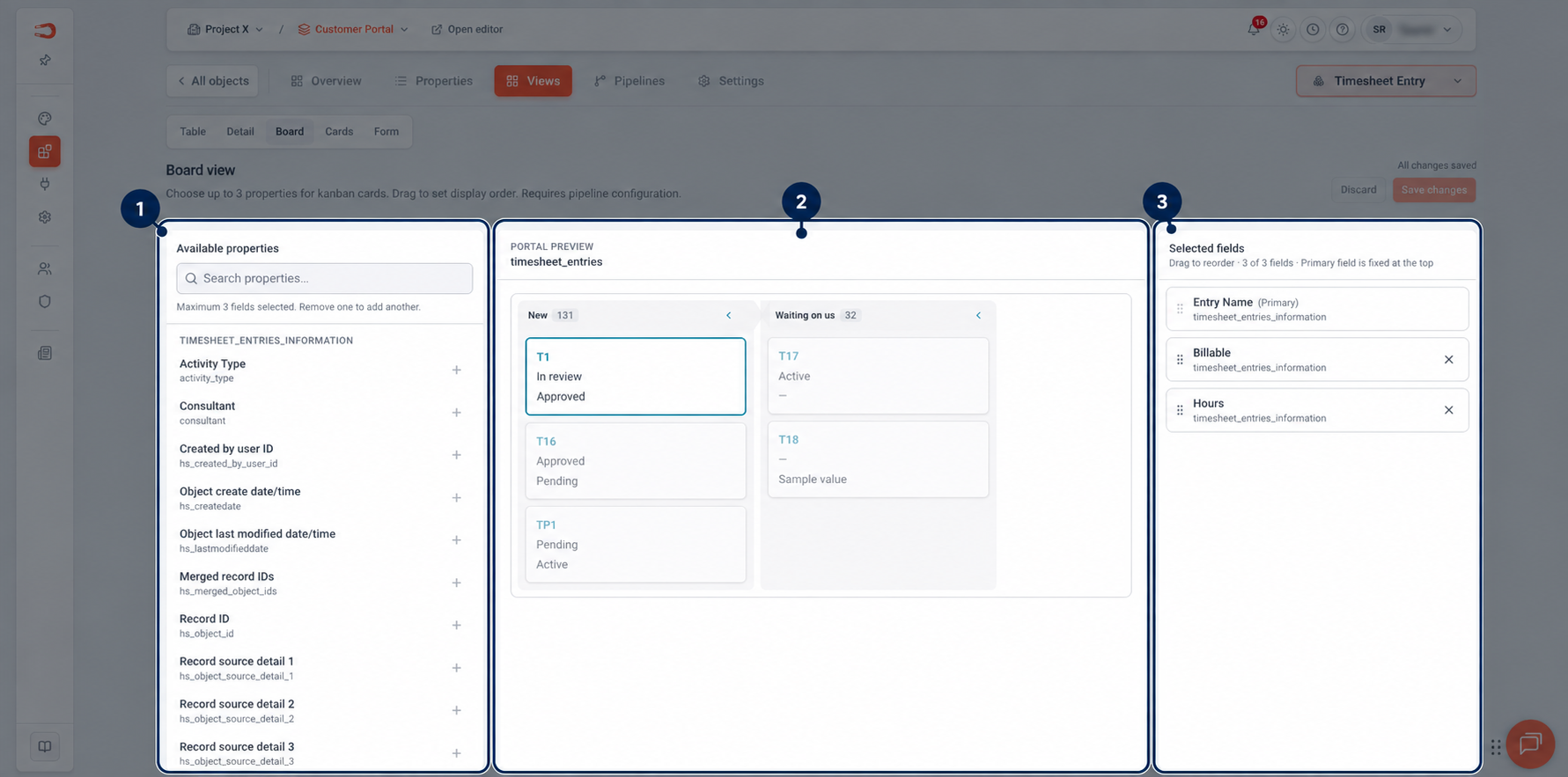
Figure: Configure a board view by selecting card fields and arranging their display.