
The captured customer login page provides an email field with Continue and a Sign in with Google option. After email entry, WoodsPortal shows only the additional sign-in methods allowed for that user and portal.
Sign in
- Open the customer portal URL supplied by your organization.
- Enter your email address and continue.
- Choose one of the methods shown for your account, such as password, configured SSO, passkey, or email sign-in link.
- Complete the selected method.
- Complete multi-factor authentication if the portal requires it.
- After sign-in, confirm that the correct portal opens.
How method availability works
- Password, SSO, passkey, and email sign-in link options appear only when the portal policy and user enrollment allow them.
- A passkey-first option appears only when passkeys are allowed and the user has an enrolled passkey.
- Email sign-in links are configuration-dependent and are disabled by default in the current implementation.
- Multi-factor authentication may still be required after SSO or another primary sign-in method.
Troubleshooting
- If no method is available, confirm that the email address matches the invited portal user.
- If the wrong portal opens, use the portal switcher when your account has access to more than one portal.
- If a sign-in link does not arrive, request a new link only when that method is shown and check the newest message.
- If the account is temporarily locked after failed password attempts, wait for the lockout to expire or use an approved recovery path.
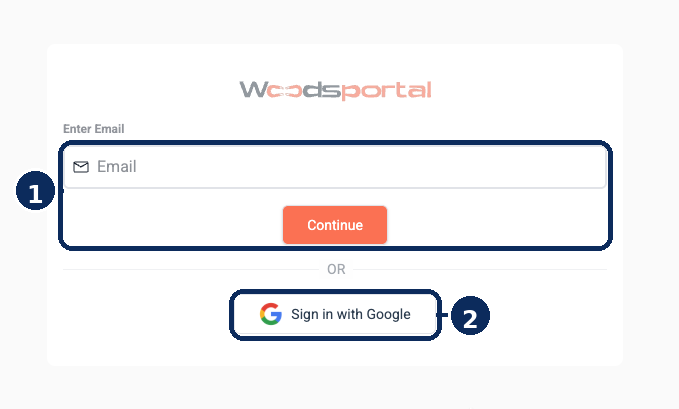
Figure: Start customer sign-in with an email address or Sign in with Google. Screens that show password, passkey, email-link, and configured SSO choices are still needed.