
Users with the required role and drive-specific permissions can upload files and create nested folders in My Drive or Shared Drive.
Upload a file
- Open the correct portal, record, drive, and folder.
- Select Upload.
- Choose a supported file from the device.
- Wait for the upload or background operation to complete.
- Confirm that the file appears in the intended folder and can be opened or downloaded.
Create a folder
- Open the parent folder.
- Select New folder.
- Enter a clear folder name.
- Create the folder.
- Open it and confirm that the breadcrumb and tree view show the correct location.
Requirements and troubleshooting
- The user needs the required file or folder permission and the drive must allow create actions.
- Upload behavior can depend on file size, type, account storage, and asynchronous processing.
- If the result does not appear immediately, review the relevant job or notification before retrying.
- If an upload fails, confirm that the file is within the supported per-file limit and that HubSpot File Manager has available storage.
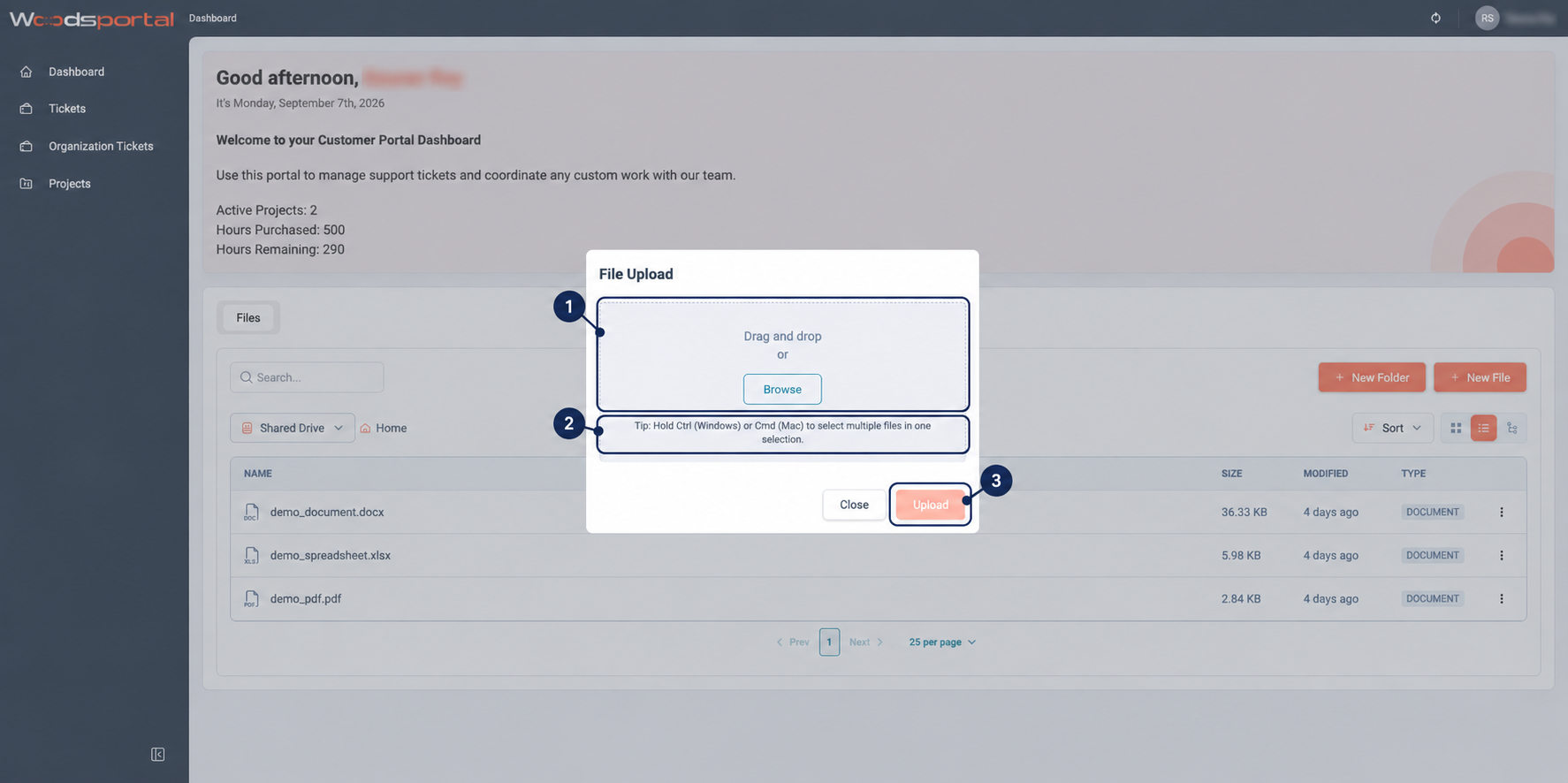
Figure: Upload a permitted file to the selected customer folder.