
WoodsPortal supports configured standard and custom HubSpot objects. Administrators select the objects used by a portal and can resynchronize the object and property catalog after HubSpot schema changes.
Choose portal objects
- Sign in to https://app.woodsportal.com and select the correct hub and portal.
- Open HubSpot Objects.
- Review the available standard and custom object tabs.
- Enable or configure only the object types required for the portal experience.
- Continue to property, view, pipeline, association, and permission configuration for each selected object.
Resynchronize after a HubSpot change
- Make the required object, property, or pipeline change in HubSpot.
- Return to the relevant WoodsPortal object or property area.
- Run Resync.
- Monitor the background job until it succeeds or reports an actionable error.
- Review the refreshed catalog before enabling newly discovered properties or stages.
Important
- Resynchronization refreshes the catalog but does not automatically make properties visible or editable.
- Object availability depends on the connected HubSpot account, WoodsPortal configuration, permissions, and applicable HubSpot entitlements.
- Use the job result to diagnose failed schema synchronization instead of repeatedly starting new jobs.
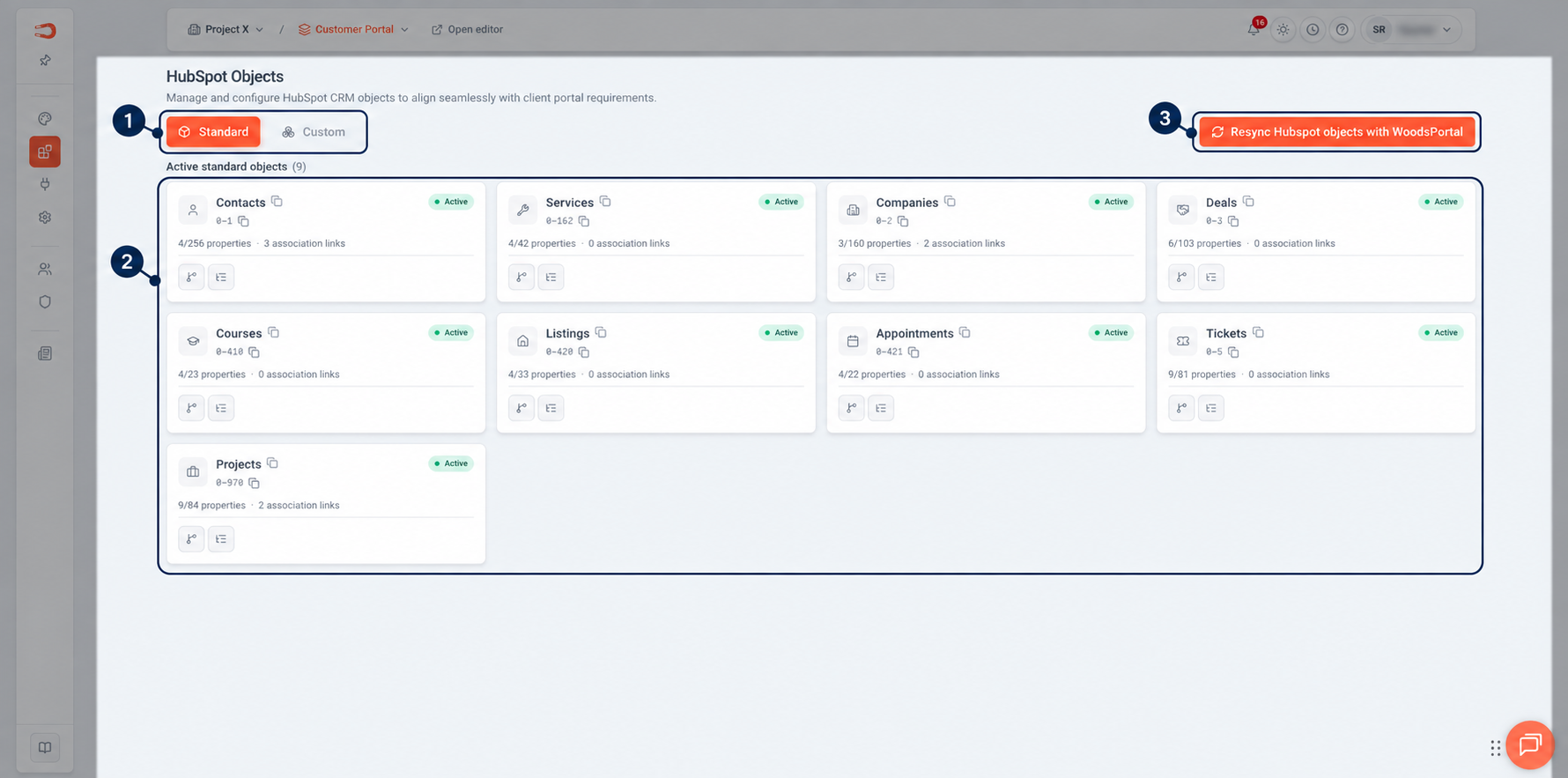
Figure: Standard HubSpot objects available for configuration and synchronization.